Using the web UI
The switch has two web pages:
| URL | Page |
|---|---|
https://<switch-ip>/ |
Status page: what the switch is doing, and its settings. |
https://<switch-ip>/update/ |
Firmware update page. |
Both work in any current browser, over HTTPS only.
Logging in
The switch makes its own HTTPS certificate on the first boot, so the browser warns that it does not know who issued it. Accept it once for the switch's address; a factory reset makes a new certificate, and the browser warns again.
- First login. A new switch, or one after a
factory reset, has no admin
account and shows only a form to create it: a username (a lower case
letter or
_, then up to 31 lower case letters, digits,_or-; not a name the switch uses itself, such asroot) and a password (8 to 128 characters, typed twice). They are the login for the web pages, SSH and the serial console; SSH lets nobody in before. The username stays until a factory reset. Continue then reloads the page. - Every other time, the browser asks for the admin username and password. It remembers them until it is closed.
If the page says "Not logged in", the login was cancelled or the password has changed: reload the page.
Status page
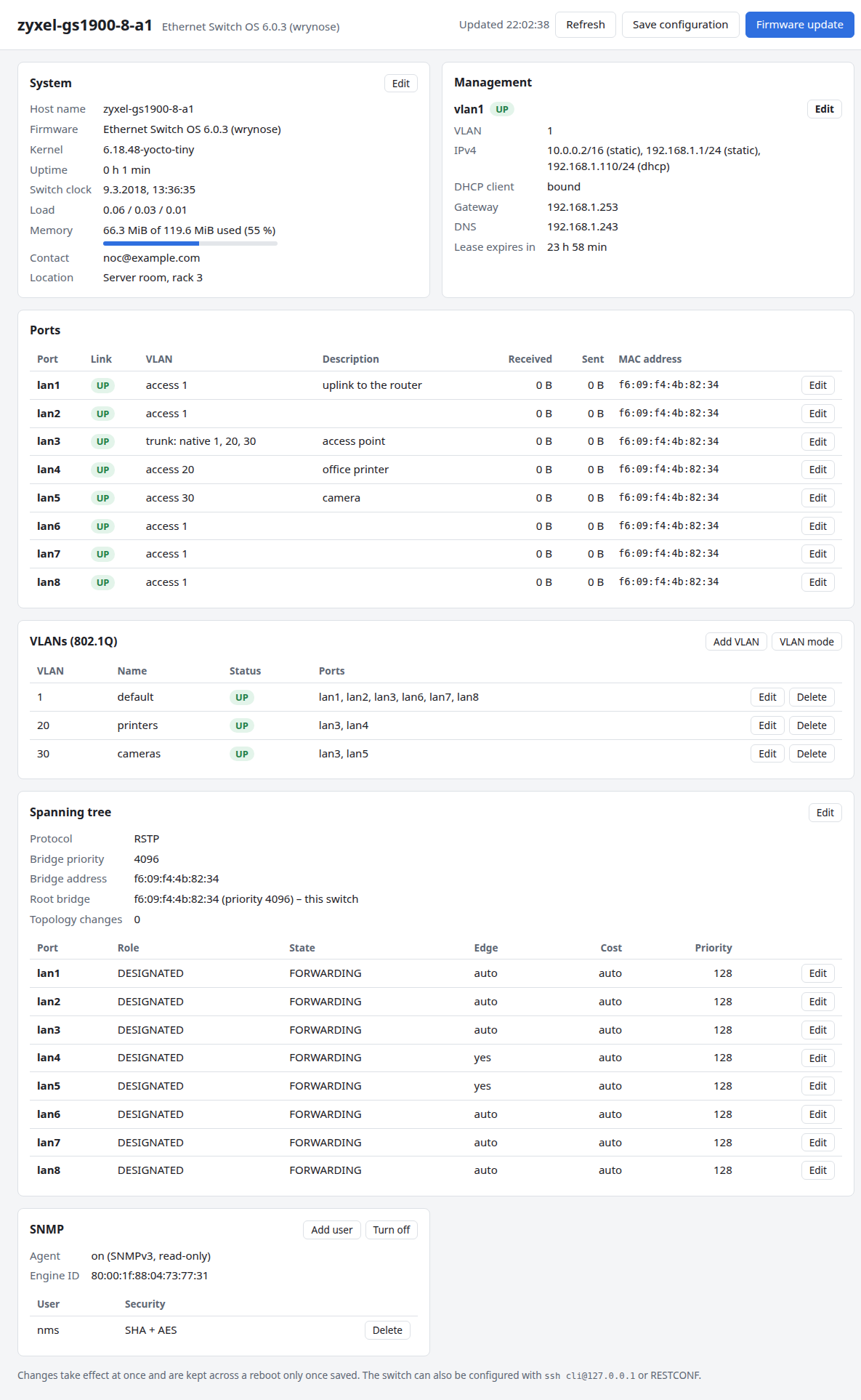
The status page shows the state of the switch at a glance. Its Edit, Add and Delete buttons change the configuration, see Changing settings.
It updates itself every 5 seconds while it is visible. Refresh updates it at once, and the time of the last update is next to it.
Header
- The switch's host name and firmware version.
- Save configuration keeps the changes made since the last save across a reboot. It is highlighted while there are unsaved changes.
- Firmware update opens the firmware update page in a new tab.
Cards
Below the header, one card per feature. What each card shows and what its dialogs change is described on the feature's page:
| Card | Feature page |
|---|---|
| System | System information |
| Management | Management IP address |
| Ports | Ports |
| VLANs | VLANs |
| Spanning tree | Spanning tree |
| LLDP | LLDP |
| SNMP | SNMP |
| Administration | Password and factory reset |
When the page shows an error
"Cannot read the switch's state" means the page could not get the data from the switch, for example while it reboots. The page keeps trying every 5 seconds and recovers by itself.
Changing settings
An Edit (or Add, Delete) button opens a dialog. Apply
sends the change to the switch, and it takes effect at once. If the switch
refuses the change, the dialog stays open and shows why, for example
VLAN 20 is not declared in vlans. Nothing has changed then.
Save, or lose it on reboot
Applied changes are not saved. A yellow banner says so until you click Save configuration. A reboot goes back to the saved configuration, which is also how you recover from a change that cut you off.
The page does not update itself while a dialog is open.
The web UI covers the everyday settings. Each feature page says what is not in the web UI; that is configured with the CLI or RESTCONF.
Firmware update page
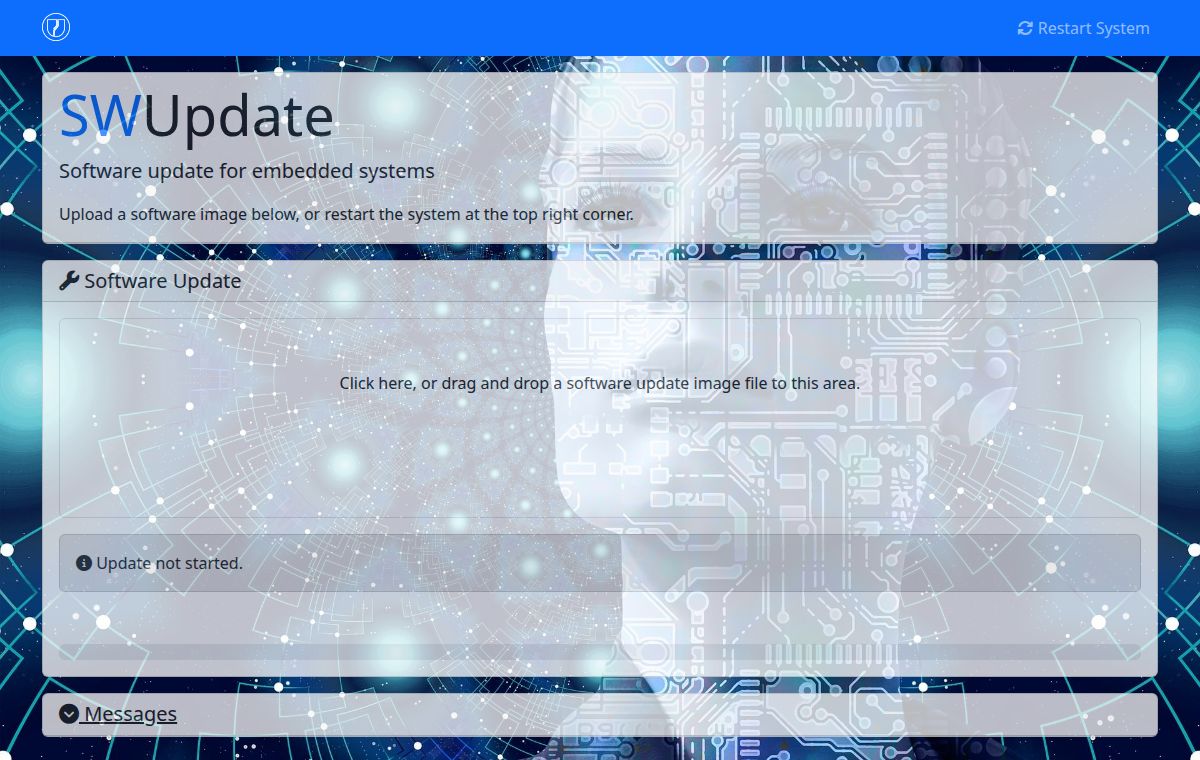
The update page is SWUpdate's own web interface, behind the same login as the status page. How to use it, and what to watch out for, is described in Firmware update. In short:
- Software Update: drop a
.swufile here, or click to choose one. The upload and installation start at once. - The status line below it ("Update not started", "Updated successfully", "Update failed") and the progress bar show how far it got.
- Messages (click to open) lists what SWUpdate is doing, including the reason when an update fails. It only shows messages of updates that run while the page is open.
- Restart System (top right) reboots the switch at once. Committed but unsaved configuration changes are lost.